Everything a school needs to run its own exams on computers
Four parts of the job, built to work together: running the exam, preparing the questions, marking and publishing results, and running the school’s space.
Exam day
Run sittings across your lab with a live view of every student
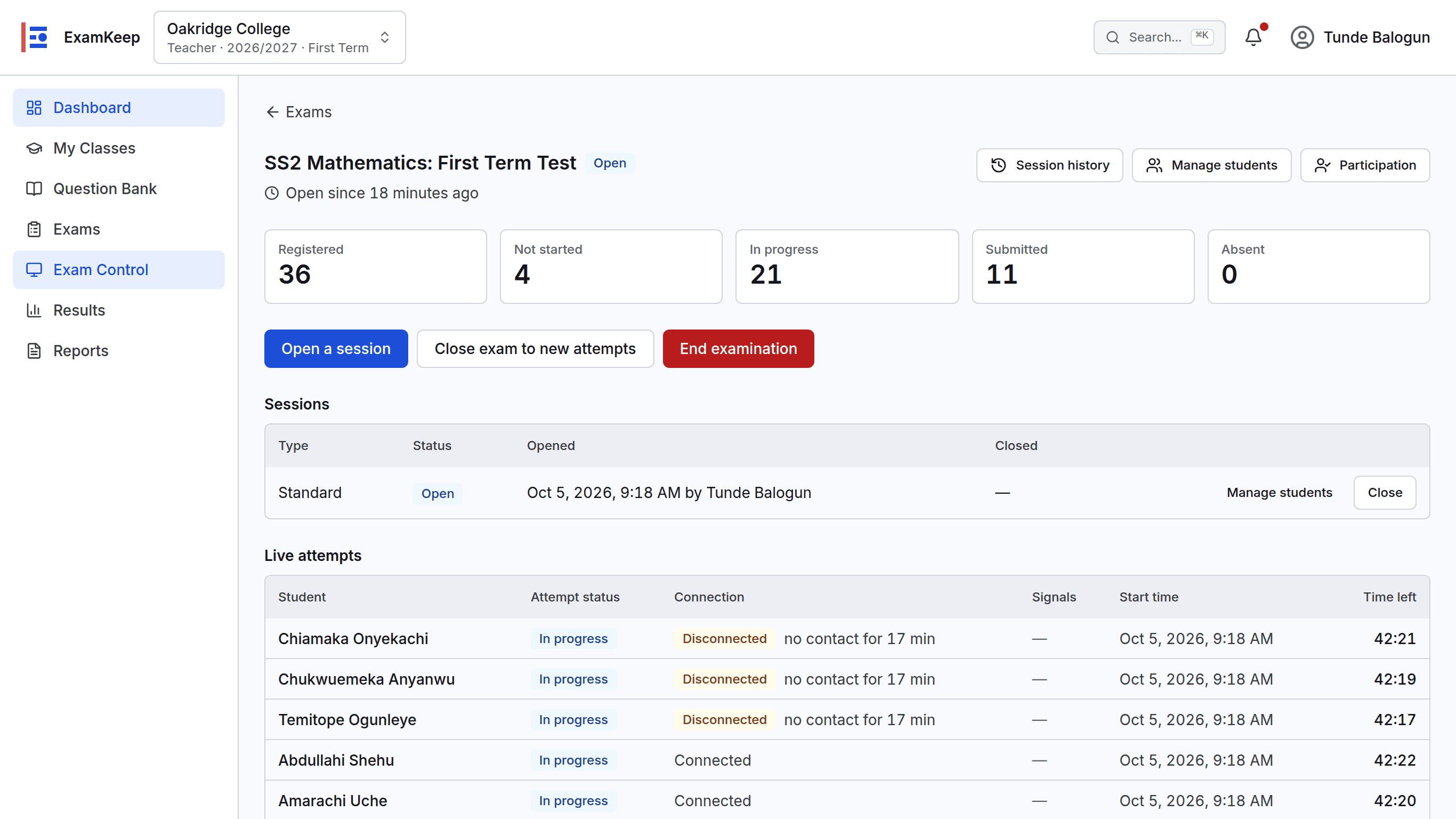
Live states for every student in a sitting, with disconnected computers listed first.
Live control of every sitting
See who has started, who is working, who has submitted and who is absent, refreshed as it happens.
Disconnected students stand out
A student whose computer has not been heard from for 90 seconds is flagged and moved to the top, so an invigilator can walk over.
Batches, not one global clock
Open the exam for one group at a time to match the computers you have. Each student’s timer is their own.
Absent students handled properly
Absence is recorded separately from scores. A makeup sitting is a new attempt that never erases the original absence.
A computer check before Start
Each student’s computer is checked for local answer storage, network and space before the exam can begin.
Fair timing after a dropped connection
Work done offline near the end is accepted within a short, recorded grace period, judged by when the server receives it.
Questions and review
A shared question bank your HODs can stand behind
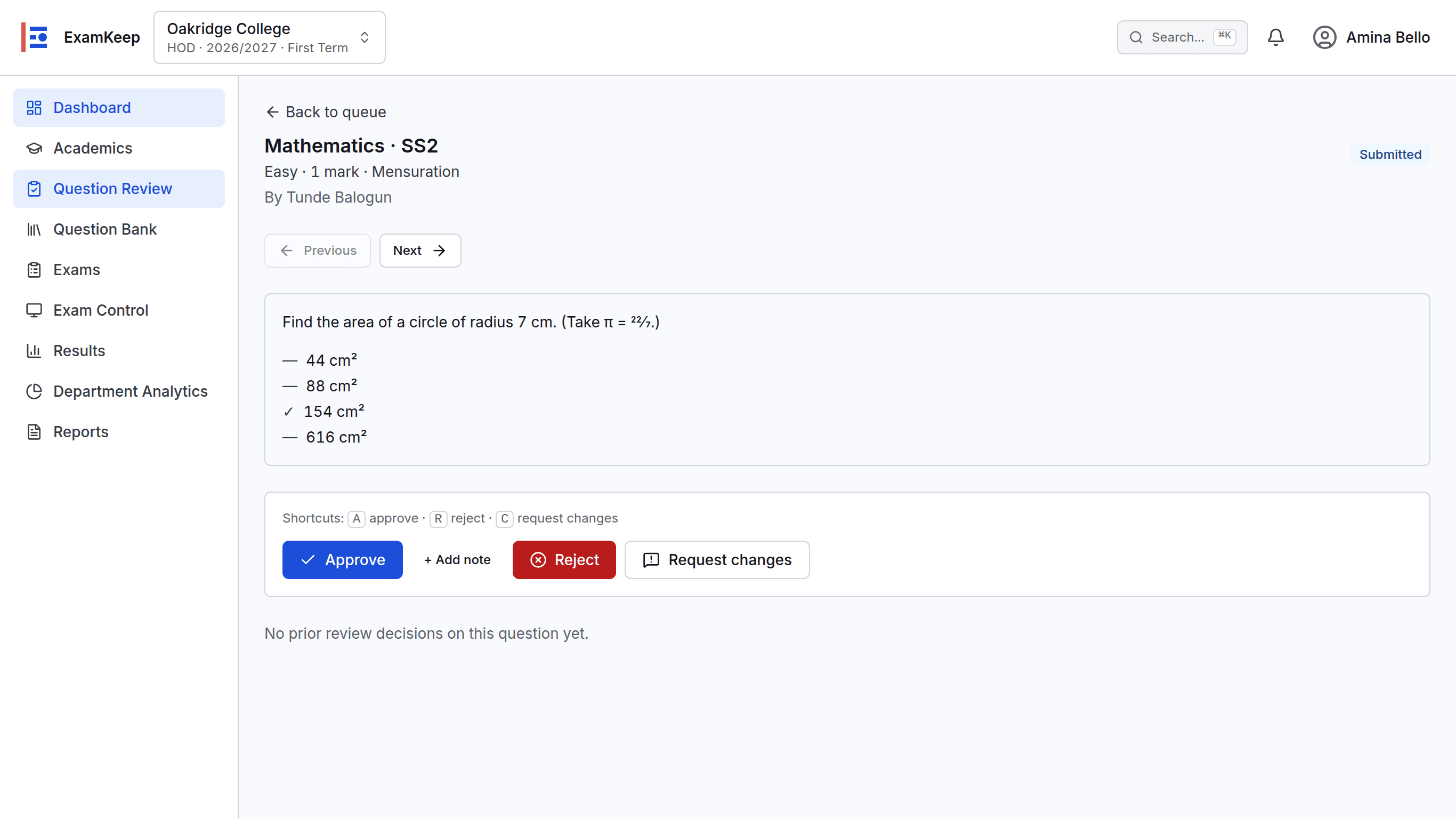
A submitted question in review: approve it, or request changes with a note.
Organised the way schools are
Questions are filed by subject, class level (SS2, not SS2A) and topic, so they can be reused across arms and years.
Reviewed before use
Teachers submit questions; HODs approve them or request changes with a note. Only approved questions go into exams.
Approved questions don’t change underneath you
An approved question is locked. Editing it creates a new version, and every past exam keeps the exact version students saw.
Bulk upload
Upload questions from a spreadsheet. Every row is checked and errors are shown before anything is saved.
Pictures in questions
Diagrams and images are loaded onto each computer before the exam starts, so they appear even if the connection is slow.
Objective question types
Single-answer multiple choice and true/false, marked automatically.
Marking and results
From the last submission to published results without a marking pile
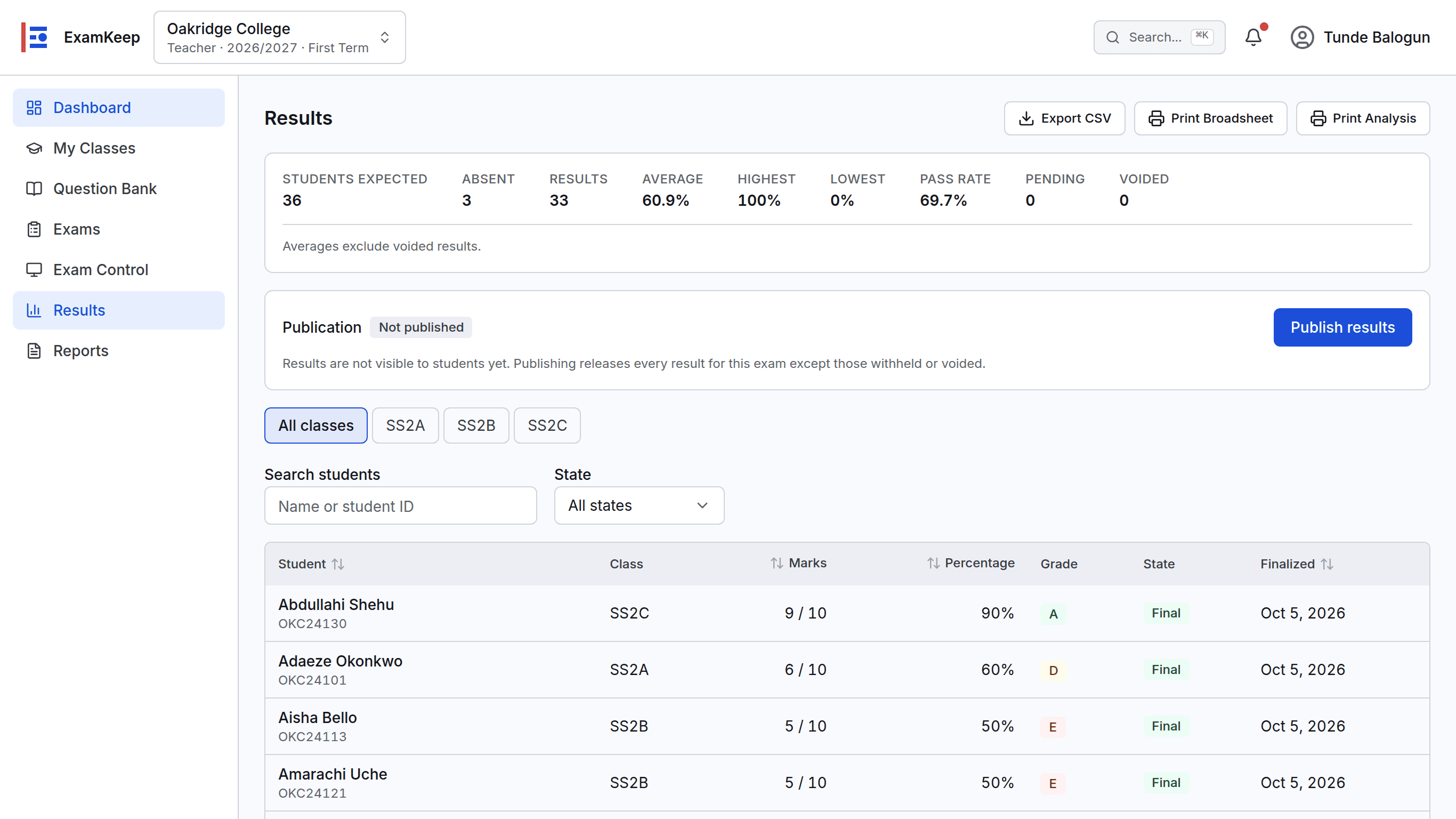
An exam’s marked and graded results, waiting for the school to publish them.
Automatic marking
Each paper is marked as it is submitted. Scores are worked out on the server from the answers recorded.
You choose when results are published
Staff see results first. Students see them only when the school publishes, and publication can be withdrawn.
Every adjustment is on the record
Corrections are explicit, with the reason and the person who made them. The original stays traceable.
Grading your way
Results are graded on the school’s own grading scale.
Analysis that helps teaching
Score distributions, pass rates and question difficulty for each exam, class and student.
Print and export
Printable result and performance views from the browser, and CSV export for your own records.
Running the school
Your school’s own space, set up in a guided wizard
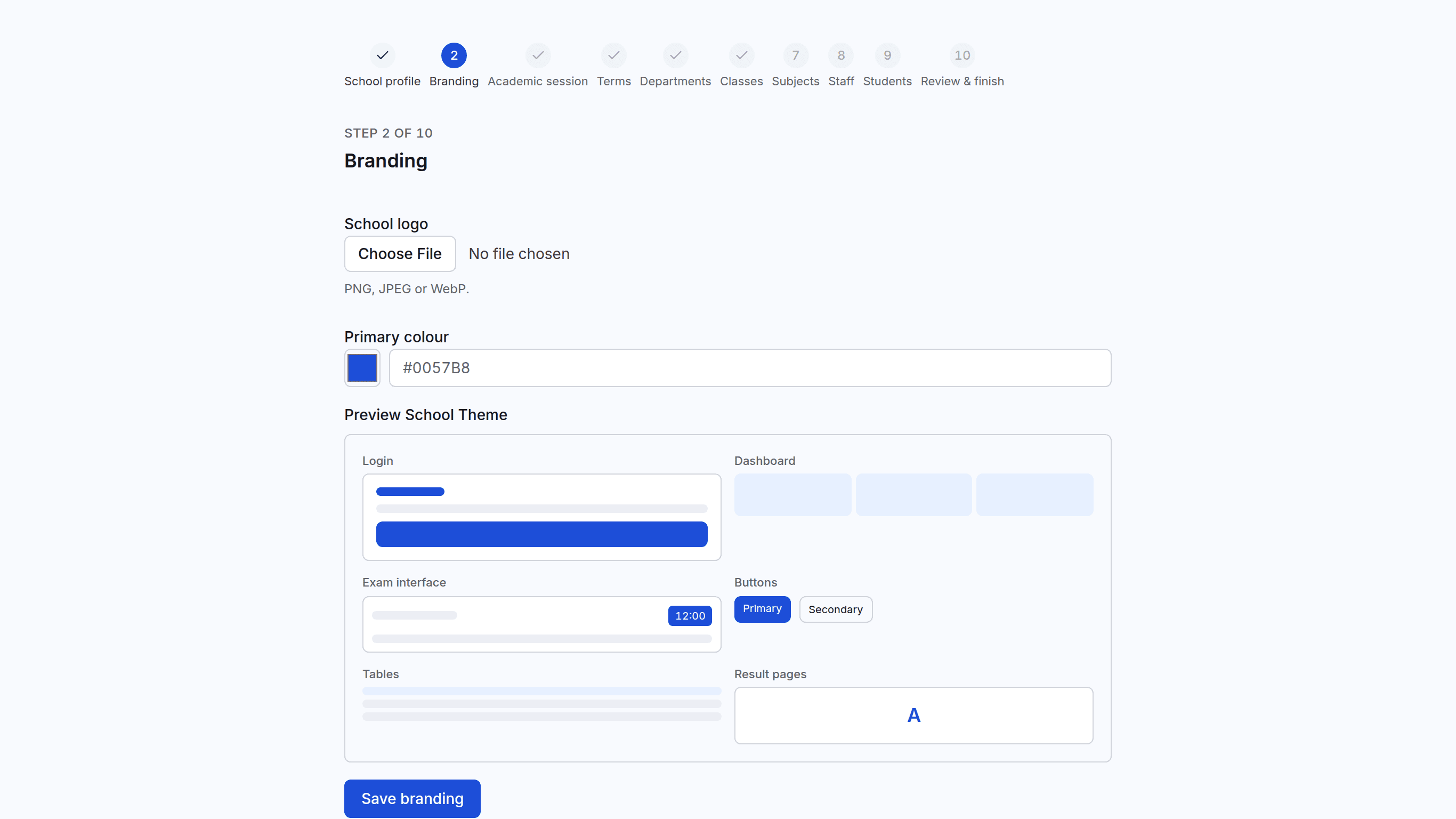
The setup wizard: each step can be saved and resumed, and the school’s colour carries through.
Your own address
Each school has its own web address, such as yourschool.examkeep.com, with its logo and colour on the sign-in page and throughout.
Guided setup
A step-by-step wizard covers profile, branding, session, terms, departments, classes, subjects, staff and students, and can be resumed.
Clear roles
School admin, moderator, HOD, teacher and student, each seeing only what their role and subjects allow.
Session rollover
Close a session and carry classes and students into the next one, reviewing each promotion, without losing last session’s records.
A record of sensitive actions
Approvals, result publications, result changes and other sensitive actions are written to an audit trail.
Your records stay yours
If a subscription lapses, nothing is deleted. Running exams finish, and there is a 14-day grace period before new activity pauses.
By role
What each person in the school does with it
School admin
Sets up the school, its sessions and terms, and keeps an eye on everything.
A guided setup: school profile, logo and colour, session, terms, departments, classes, subjects, staff and students
A dashboard of what needs attention across the school
A record of sensitive actions: who did what, and when
Moderator
Keeps the school’s people and classes correct, often the exam officer.
Bulk import of students and teachers from CSV or Excel, checked row by row before anything is saved
Printable sign-in sheets for new students
Running exam sittings and handling absent students
HOD
Owns the quality of the department’s questions and exams.
A review queue: approve a question or request changes with a note
Question difficulty and class performance for the department
Oversight of the department’s exams and results
Teacher
Writes questions and sees how students performed.
A question bank by subject, class level and topic, with pictures in questions
Bulk question upload from a spreadsheet
Results and question-by-question analysis for their classes
Student
Sits the exam, and nothing else gets in the way.
A calm exam screen with a clear timer and a question navigator
Answers saved on the computer as they work
Results to view once the school publishes them
See it with your own exams in mind
We’ll walk you through a sitting from start to published result, and answer the questions your staff will ask.